
Run hunts
Run hunts on the nano server or in nano Desktop, run them now or on a schedule, limit each run with budgets, and stop them.
Run a hunt now or on a schedule. Choose where its AI runs: on the nano server with the AI provider you configured, or in nano Desktop on an analyst's computer. Either way, the hunt reads the same data and its findings appear in the same place.
Before you begin
- Configure an AI provider and assign models to the hunt agents. See Set up AI for hunts.
Choose a runner
A runner is what runs a hunt's AI steps. There are two kinds.
| Server runner | Desktop runner | |
|---|---|---|
| Where the AI runs | On the nano server | On an analyst's computer, in nano Desktop |
| Which AI | The models assigned to the hunt agents in Agent Models | The analyst's own coding agent and model |
| Queries and scoring | On the server, without AI | On the server, without AI |
| Reviewer | On the server | On the server, if you turn it on for the hunt |
| Findings | In nano | In nano |
Each run records which runner and which AI model produced it.
The server runner is built in and on by default. It reads your data through a private, read-only connection that only it can use. It doesn't need the Agent Lane switch or listener that external agents use. See Hunt security.
The Desktop runner runs in nano Desktop. Use it when you want an analyst's own AI agent to investigate, or when you don't want the server to call an AI provider.
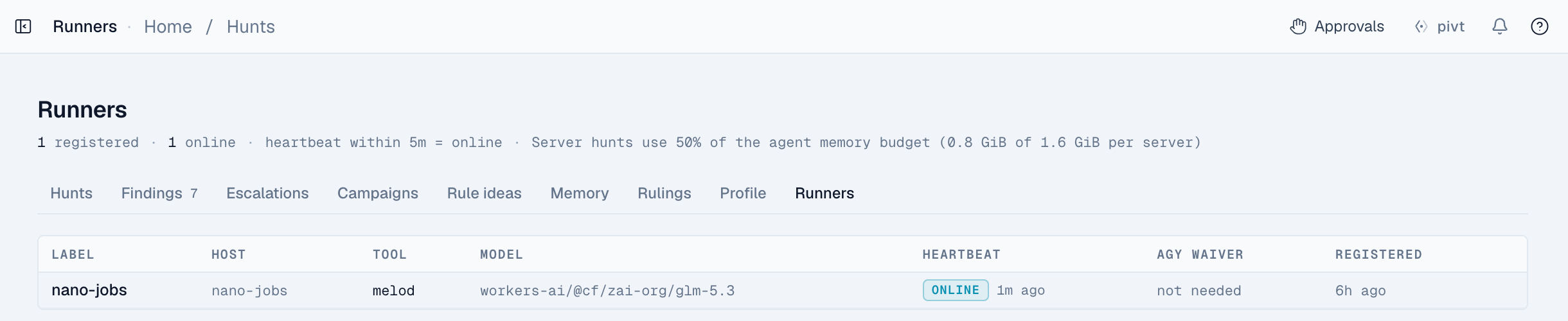
Check the runners
- Click Hunts, then Runners.
- Check that the server runner shows online. If it shows unavailable, the reason is listed. See The server runner is unavailable.
Choose where a hunt runs
Each hunt runs on server, desktop, or any. New hunts run on server when a working server runner is online, and on desktop otherwise. Hunts created before v2.0.32 keep desktop.
To change it, call the API with runner_kind. You need hunts:manage.
curl -X PATCH "https://<your-nano-host>/api/hunts/<hunt-id>" \
  -H "X-API-Key: $NANO_API_KEY" \
  -H "Content-Type: application/json" \
  -d '{"runner_kind": "server"}'
The change applies to the next run. A run that already started finishes where it is.
Run a hunt now
- Click Hunts and open the hunt.
- Click Run now.
nano queues a run over the hunt's time window, which is the last 24 hours by default, and opens it. A hunt runs one sweep at a time.
When the run ends, it shows one of these outcomes:
| Outcome | Meaning |
|---|---|
completed | The run finished. nano shows how many findings it filed. |
no_leads | The run finished without findings. |
no_coverage | None of the hunt's sources had data. No AI was used. |
budget_exhausted | A budget ran out. The findings filed so far are kept. |
held | A source the hunt needs is unhealthy. |
error | The run failed, or its runner stopped responding. |
cancelled | The run was stopped, for example because the hunt was archived. |
Schedule a hunt
- Open the hunt.
- In Schedule, choose Daily 03:00, Daily 05:00, Every 6h, Every 12h, or Weekly Mon 04:00.
- Click Enable.
New hunts start disabled, including hunts from templates and imported hunts. A person decides when they run.
When several hunts are due, nano runs the most important first. Priority grows with the hunt's risk weight, how overdue it is, and how many active campaigns it tracks. Every due hunt still runs, so no hunt waits forever.
If nano was down and missed runs, it doesn't queue each missed run. It runs once, over a window that covers the gap, up to 72 hours by default.
Set budgets
Every run has budgets. The hunt page shows its budgets, and each run shows how much it used.
| Budget | Limits | Default for new hunts |
|---|---|---|
budget_max_ai_tokens | Budget tokens the investigator uses | 500,000 |
budget_max_tool_calls | Investigator queries and actions | 60 |
budget_max_turns | Investigator AI turns | 40 |
budget_max_wall_seconds | Total run time, in seconds | 900 (15 minutes) |
budget_max_rows | Rows the investigator reads | 20,000 |
| Reviewer | Budget tokens for each finding, and for all findings in one run | 100,000 for each finding, at most 1,000,000 for each run |
Cached input counts as about a fifth of a token toward a budget. Billing isn't affected.
nano always keeps room for a final turn, so a run can file what it found before it stops. When a budget runs out, the run ends as budget_exhausted and keeps its findings.
To change a budget, call the API. You need hunts:manage.
curl -X PATCH "https://<your-nano-host>/api/hunts/<hunt-id>" \
  -H "X-API-Key: $NANO_API_KEY" \
  -H "Content-Type: application/json" \
-d '{"budget_max_ai_tokens": 250000}'See Cost and budgets.
Stop hunts
You can't stop a single run from the page. Use one of these options:
| To | Do this |
|---|---|
| Stop a hunt's future runs | Click Disable on the hunt, or set Schedule to manual only. A run in progress finishes. |
| Stop a hunt now, including a run in progress | Archive the hunt with DELETE /api/hunts/<hunt-id>. You need hunts:manage. Its runs end as cancelled. |
| Stop all scheduled runs | Set HUNT_SCHEDULER_ENABLED=false on the jobs service. Hunts then run only when someone clicks Run now. |
| Stop the server runner | Set NANO_HUNTS_SERVER_RUNNER=off on the jobs service. Runs in progress save what they have and end as cancelled. |
If a runner stops responding during a run, nano ends the run as error after a timeout. The next run can then start.
What's next
Escalation
Control how hunt findings reach your analysts: the escalation bar, the off, notify, and case modes, the case gate, notifications, and acknowledgement.
Create and edit hunts
Create a hunt from a template, write its hypothesis and queries in the playbook editor, test the queries, and change other hunt settings.