
Create and edit hunts
Create a hunt from a template, write its hypothesis and queries in the playbook editor, test the queries, and change other hunt settings.
Create a hunt from a template, then adjust its playbook for your environment. New hunts start disabled, so you can test a hunt with Run now before you schedule it.
Before you begin
Create a hunt from a template
- Click Hunts.
- Click New hunt from template.
- Select a template. Each one shows its hypothesis and how many queries it runs.
- Click Create hunt.
nano creates the hunt, disabled, and opens it.
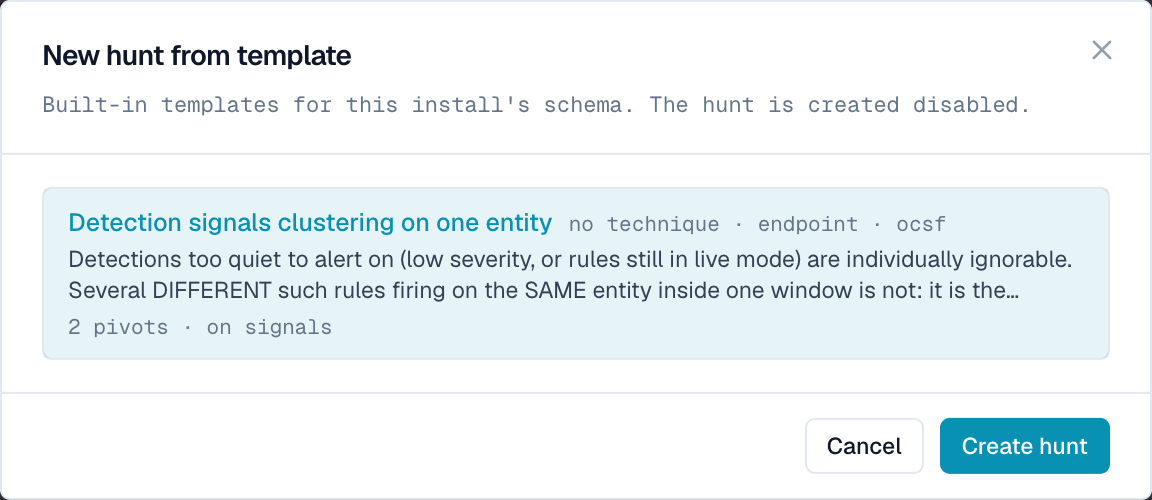
nano includes this template:
| Template | What it looks for |
|---|---|
| Detection signals clustering on one entity | Several different quiet detections, such as low-severity rules or rules in Live mode, that fire on the same host, user, or IP in one window. Each one alone is easy to ignore. Together they can show an intrusion moving through its stages. |
You can also add hunts in these ways:
- Import from a repository. Hunts are markdown files that sync from a playbook repository. Imported hunts start disabled.
- Draft from your deployment profile. nano Desktop can profile your telemetry and draft hunts that fit it. Drafts show as draft until someone schedules them. The Profile page shows the profile.
- Use the API. Send
POST /api/hunts. You needhunts:manage.
Edit the playbook
- Open the hunt.
- On the Playbook card, click Edit playbook.
- In Hypothesis, describe what the hunt believes and what would rule it out. Name the harmless activity that looks similar, such as patch management or a vulnerability scanner.
- In Risk weight, enter a number from 1 to 10.
- In Default severity, choose a severity. The reviewer can raise a finding's severity, but never lower it.
- Optional: select Escalations need a plain-English readout.
- Click Add pivot for each query, up to 12. For each pivot, enter:
- a name, using lowercase letters, digits,
_, or-; - a role: discovery finds candidates, and coverage measures normal activity;
- a dataset: events for an nPL query, or signals for a SQL query over detections;
- optional: the source types it needs, separated by commas;
- the query;
- optional: a scorer (zscore, iqr, or rare), the column to score, and a threshold.
- a name, using lowercase letters, digits,
- Click Save playbook.
The change applies from the next run. nano checks your input before it saves.
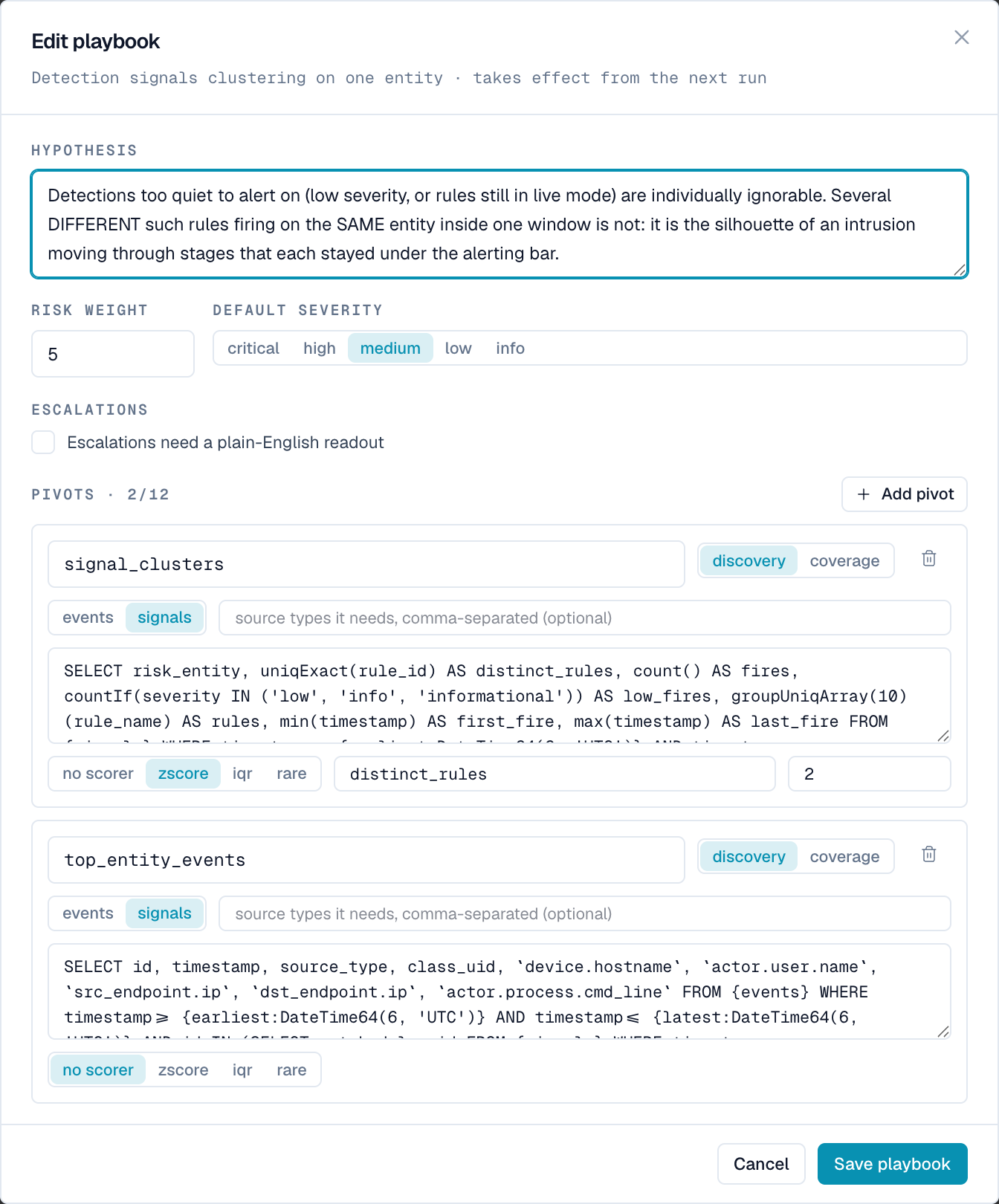
To change the escalation mode or the reviewer setting, use the Escalation card. See Escalation.
Write an events query
An events query is nPL. nano adds the time range, so don't add your own. End the query with | table and list only the fields the investigator needs. Include id so the investigator can cite events.
class_uid=1007 process.name="powershell.exe" process.cmd_line=*enc* | table id, timestamp, device.hostname, actor.user.name, process.cmd_line, process.parent_process.nameWrite a signals query
A signals query is one SQL SELECT. Write {signals} for the detections table and {events} for the events table. Use {earliest:DateTime64(6, 'UTC')} and {latest:DateTime64(6, 'UTC')} for the time range.
SELECT risk_entity, uniqExact(rule_id) AS distinct_rules, count() AS fires
FROM {signals}
WHERE timestamp >= {earliest:DateTime64(6, 'UTC')}
  AND timestamp <= {latest:DateTime64(6, 'UTC')}
  AND risk_entity != ''
GROUP BY risk_entity
ORDER BY distinct_rules DESC
nano refuses a query that has comments, more than one statement, or anything other than SELECT.
Add a scorer
Use a scorer to flag unusual rows. The column you score must be in the query's results. For example:
zscoreondistinct_ruleswith threshold2flags hosts, users, or IPs more than two standard deviations above the average.iqrwith threshold1.5flags values outside the normal range.rareonprocess.parent_process.namewith threshold3flags parent processes seen three times or fewer.
Test a query
nano doesn't have a separate test button for queries. Test them this way:
- Click Search.
- Paste the events query and set the time range to the hunt's window, which is 24 hours by default.
- Check that the results include
idand every column the scorer needs. - Save the query in the playbook.
- On the hunt, click Run now, then open the run.
- Check how many rows each query returned. If nano skipped a query, the reason is shown, for example
source not present.
A test run uses AI tokens. While you test, give the hunt a small token budget. See Cost and budgets.
Change other settings
The Hunts pages change the playbook, schedule, escalation mode, and reviewer. To change other settings, call PATCH /api/hunts/<hunt-id>. You need hunts:manage.
| Setting | Field |
|---|---|
| Name and description | title, subtitle, doc |
| Original query | sweep_query |
| Time window | lookback_window (for example 24h) |
| Longest catch-up window | max_catchup_lookback (default 72h) |
| Required sources | required_source_types |
| MITRE ATT&CK tactic and technique | mitre_tactic, mitre_technique |
| Budgets | See Set budgets |
| Where the hunt runs | runner_kind |
Enabling a hunt through the API also needs hunts:run.
Archive a hunt
To archive a hunt, call DELETE /api/hunts/<hunt-id>. You need hunts:manage. nano disables the hunt, removes it from the list, and cancels any run in progress. Its findings, runs, and memory stay, subject to retention.